
Free software · by 22Softwares
PMS runs your whole shop. Free, forever.
Premium Management System keeps sales, customer credit, cash, stock, expenses and profit in one place — on your phone, on the PC at the counter or in the browser, even without internet.
Android · Windows · macOS · Linux · Web
See it working
Nine real screens from the PMS demo shops. Pick one to see what it shows and how to use it — every screen also works in Bangla, on a phone, a computer or the web.
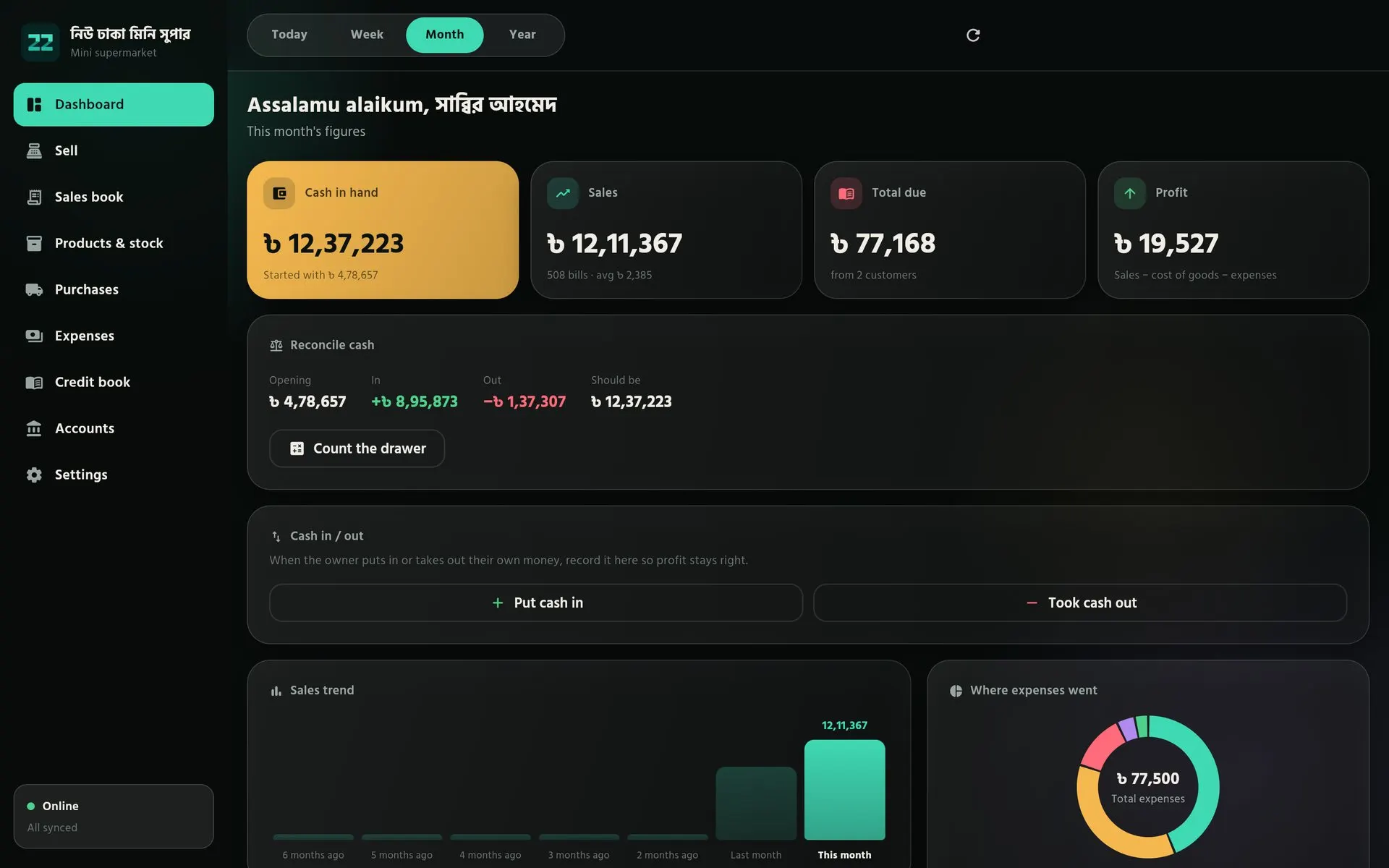
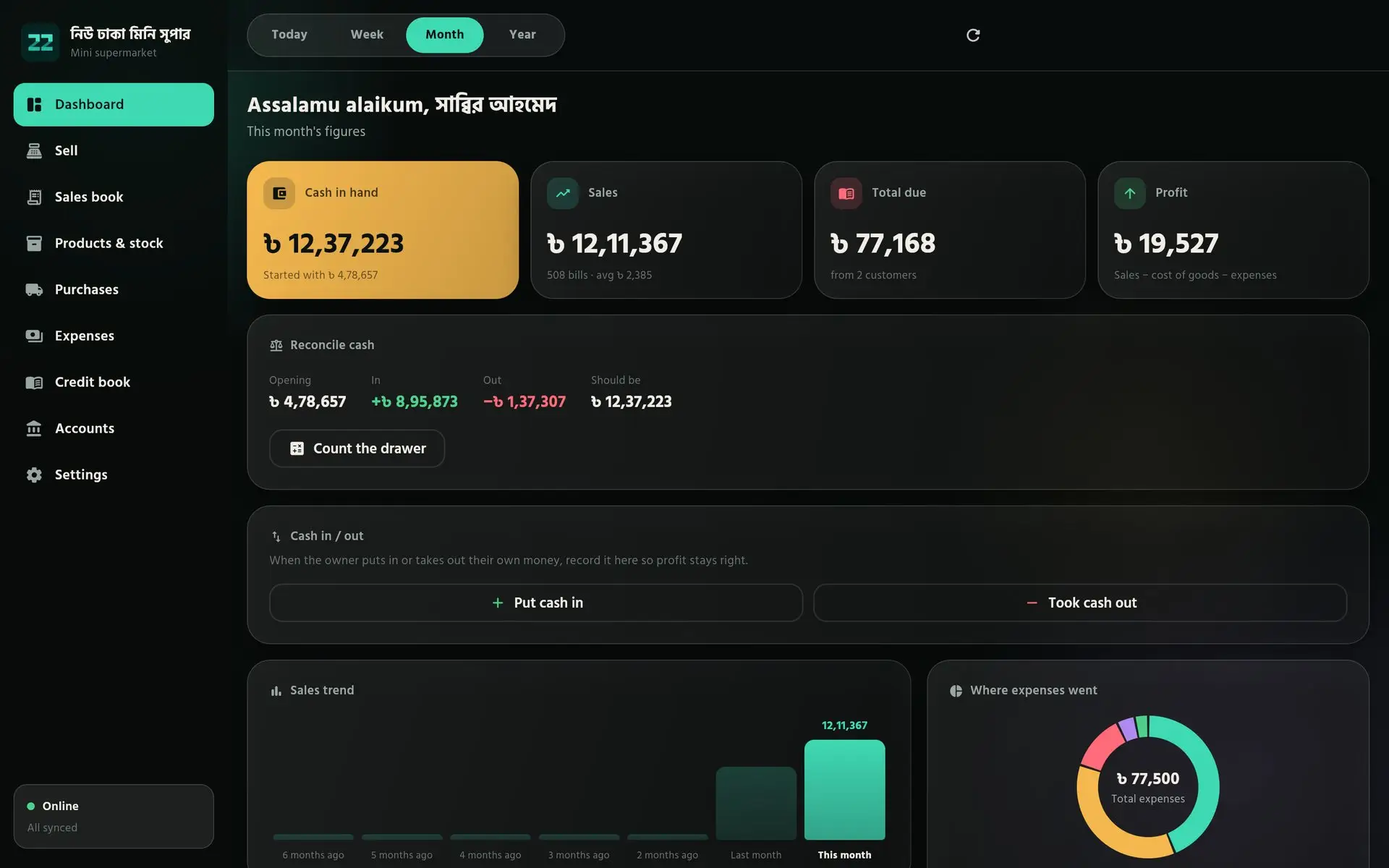
Dashboard1 of 9
See where the shop stands
Cash in hand, sales, total due and profit for today, the week, the month or the year. Below them sit the cash check, the owner’s cash in and out, the sales trend and where the expenses went.
How to use it
- Switch between Today, Week, Month and Year at the top.
- At closing, tap “Count the drawer” and enter the cash you counted.
- Record your own money with “Put cash in” or “Took cash out”, so profit stays right.
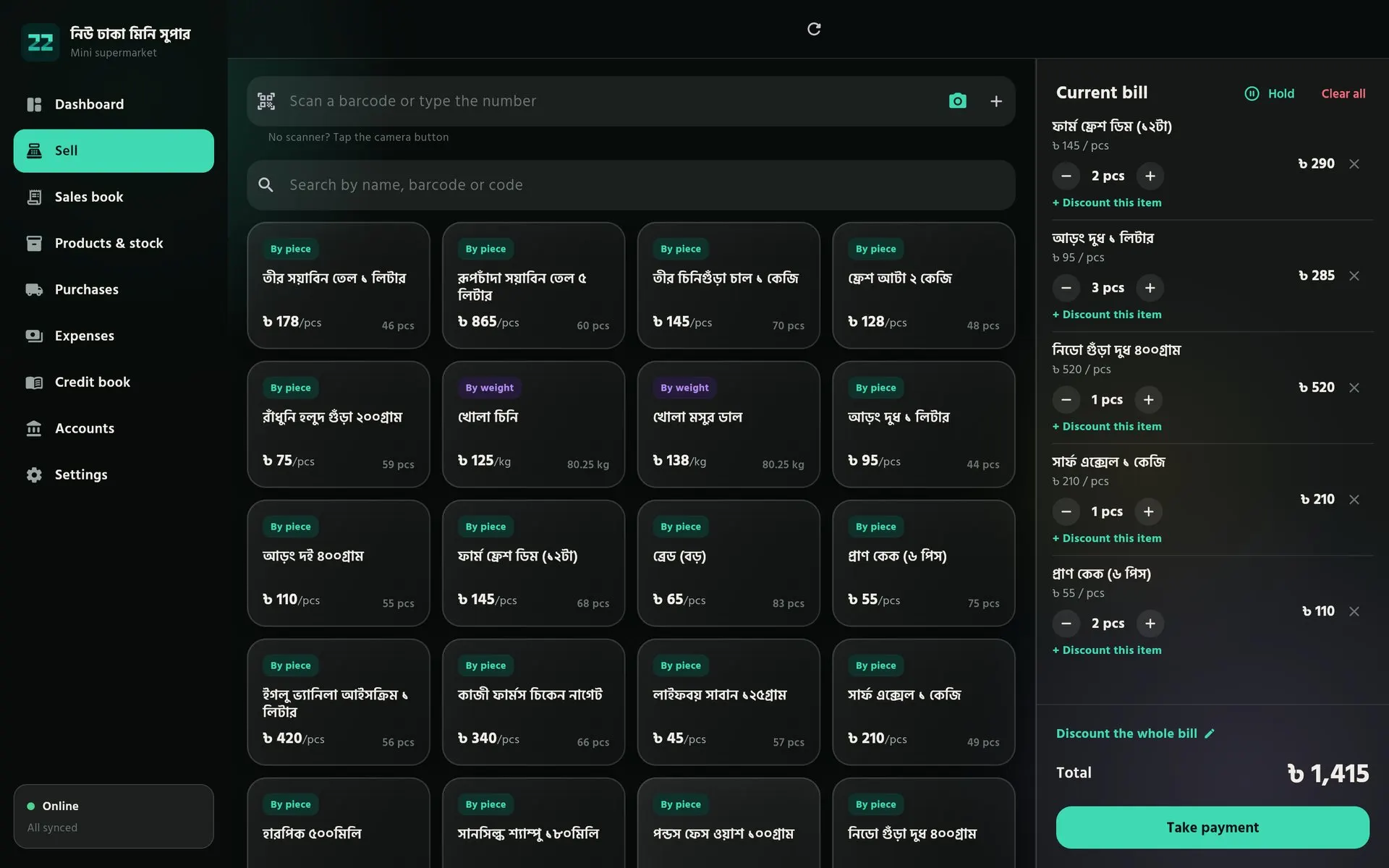
Sell2 of 9
Bill in seconds with a barcode
Scan with a scanner or the phone camera, or search by name or code. The current bill builds up on the right, with a discount for one item or the whole bill.
How to use it
- Scan an item, or tap its card, to put it on the bill.
- Change quantities with − and +. Use “Hold” to serve the next customer first.
- Tap “Take payment” and take cash, bKash or credit.
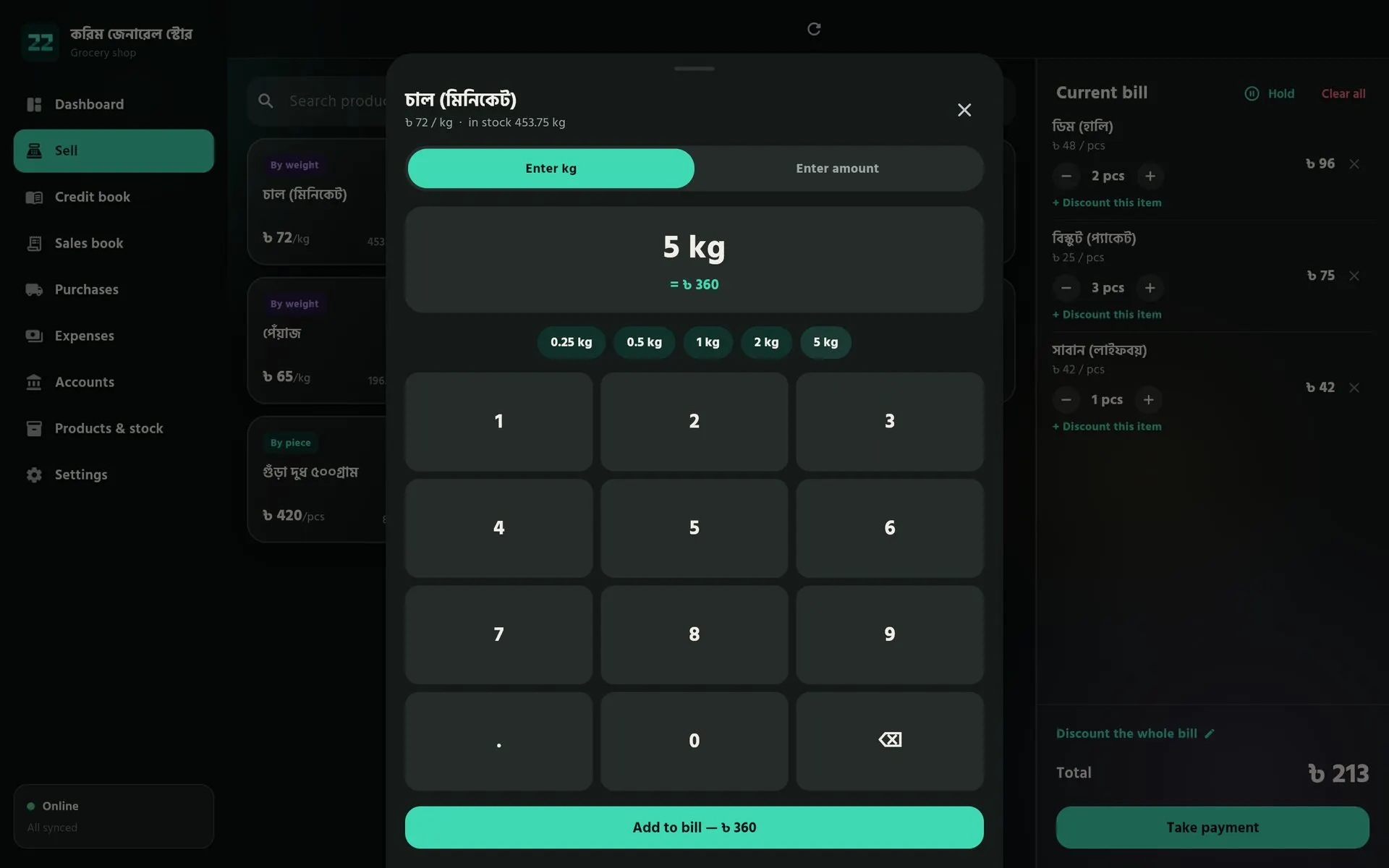
By weight3 of 9
Loose goods by the kilo or by the amount
For rice, lentils and sugar sold loose, a large number pad takes the weight — or the money the customer wants to spend — and works out the other. Pieces and kilos share one bill.
How to use it
- Tap a product marked “By weight”.
- Type the kilos, tap a quick size, or switch to “Enter amount”.
- Tap “Add to bill” — the price is worked out for you.
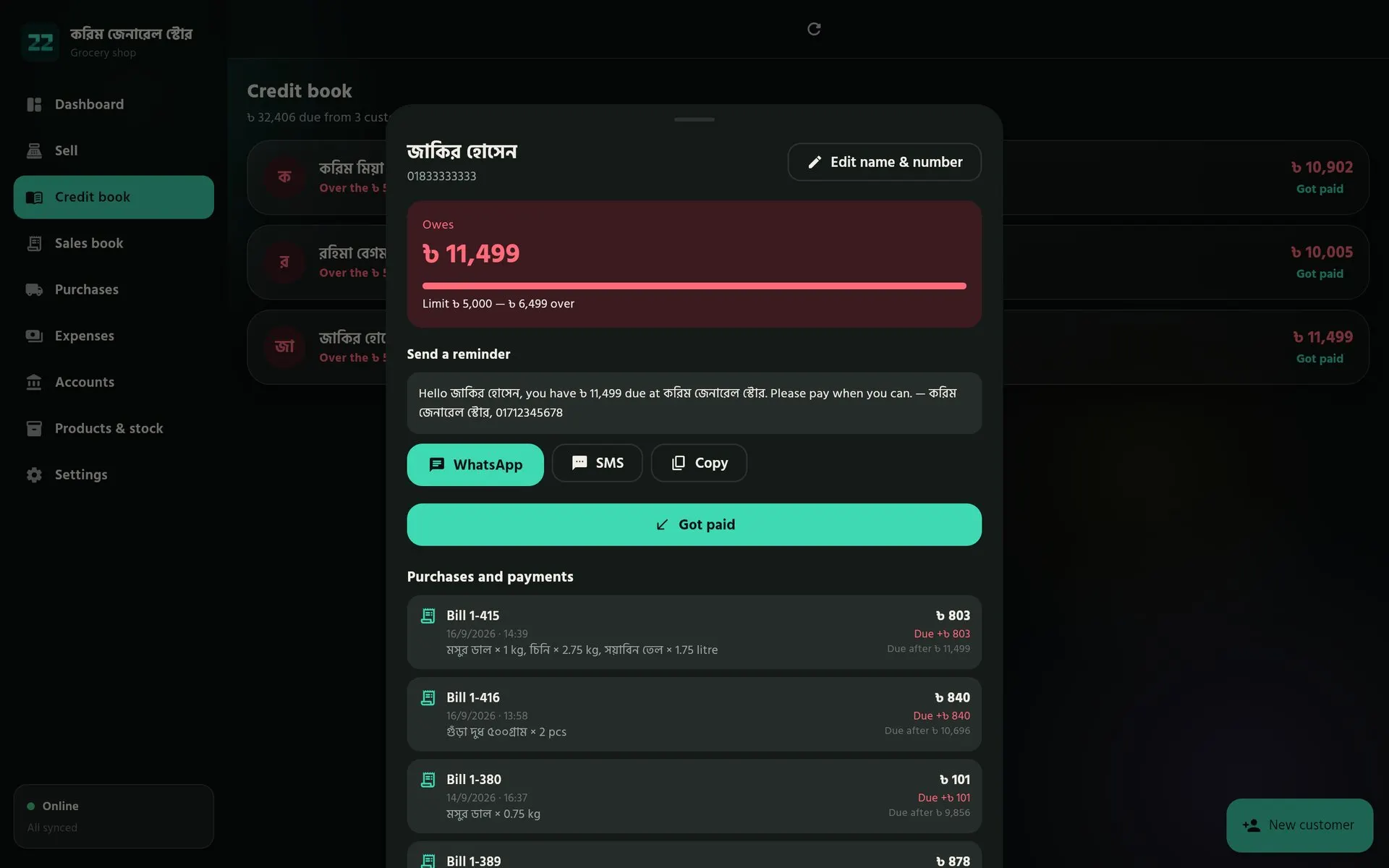
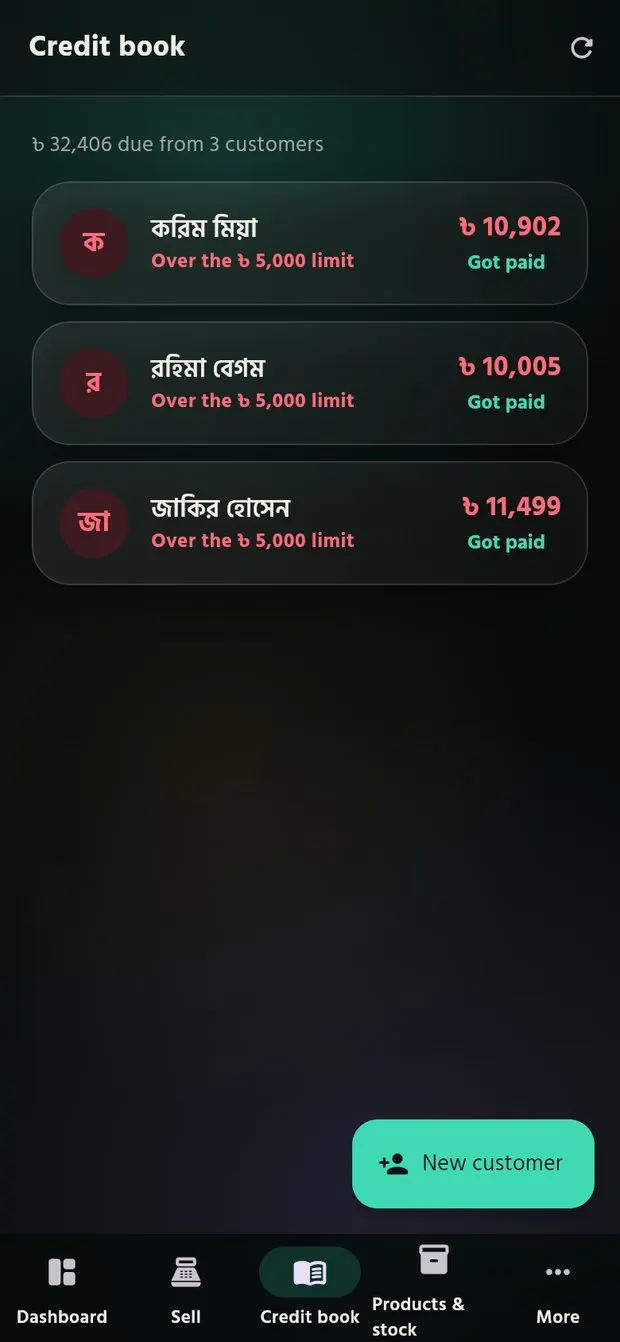
Credit book4 of 9
Every customer’s due, with a limit
Each customer’s balance against their credit limit, and every purchase and payment in order. A polite reminder is written for you, ready for WhatsApp or SMS.
How to use it
- Open a customer from the Credit book.
- Send the reminder with “WhatsApp”, “SMS” or “Copy”.
- When they pay, tap “Got paid” — the due and the cash box update together.
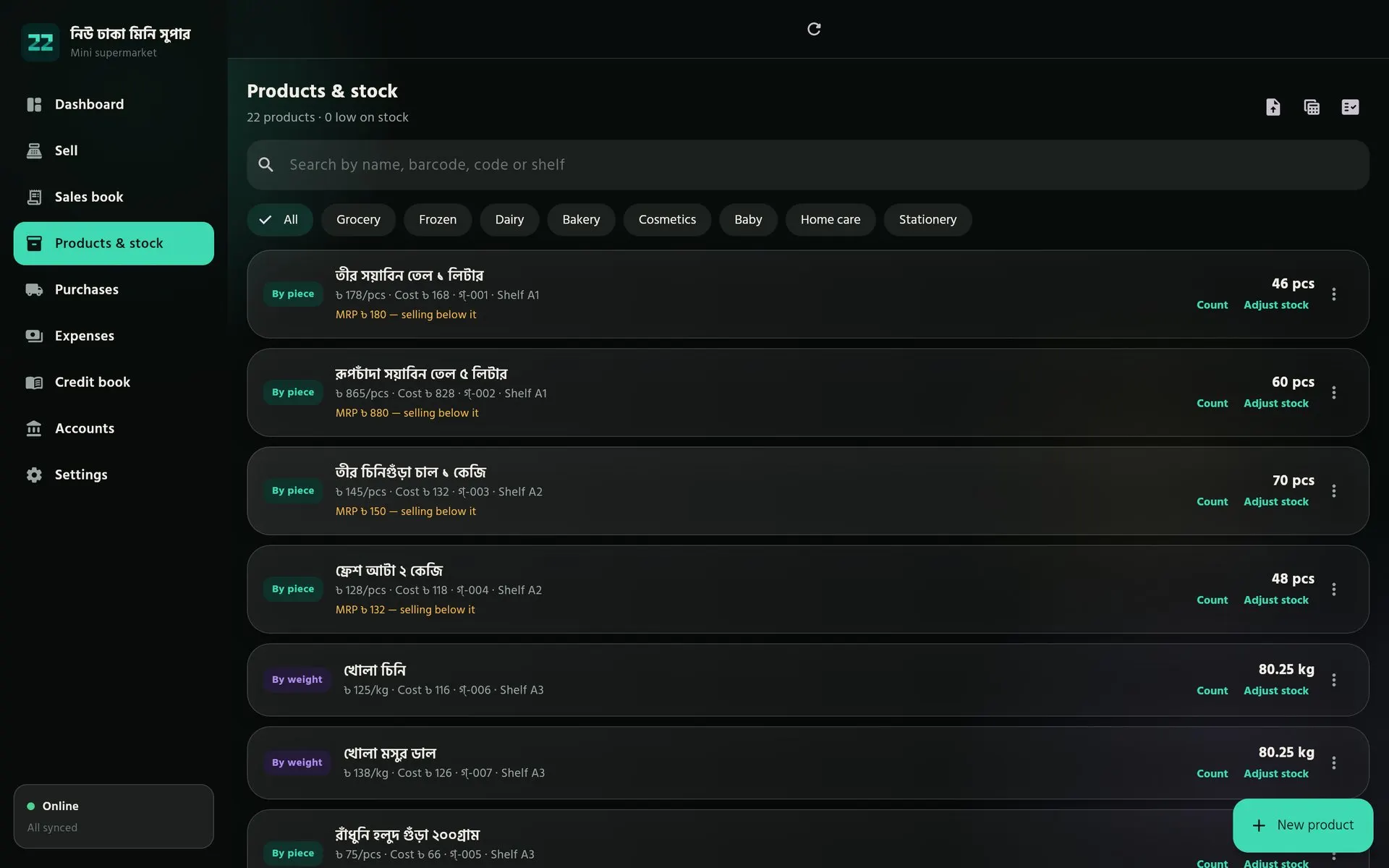
Products & stock5 of 9
Stock you can trust
Every product with its price, cost, MRP, code and shelf, filtered by department. Items selling below MRP or running low stand out, and counts keep the numbers honest.
How to use it
- Add items with “New product”, or import a list from Excel.
- Filter by department, or search by name, barcode, code or shelf.
- Use “Count” for a shelf count and “Adjust stock” for damage or loss.
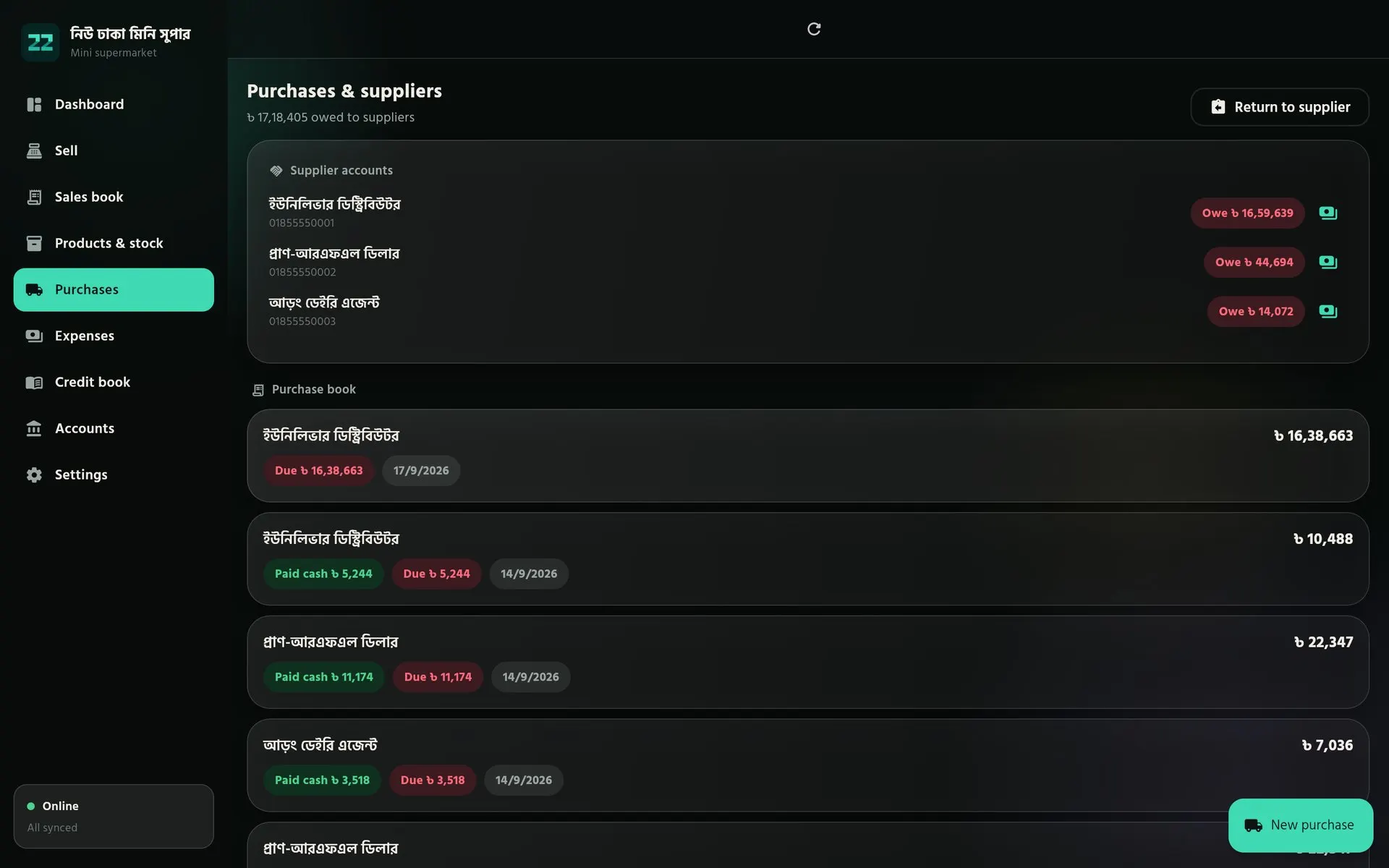
Purchases6 of 9
Suppliers and what you owe them
Each delivery adds stock at its real cost. What you still owe every supplier sits at the top, and the purchase book shows what was paid in cash and what is still due.
How to use it
- Record each delivery with “New purchase”.
- Pay part in cash now and leave the rest as due.
- Send goods back with “Return to supplier” — stock and the supplier’s account adjust.
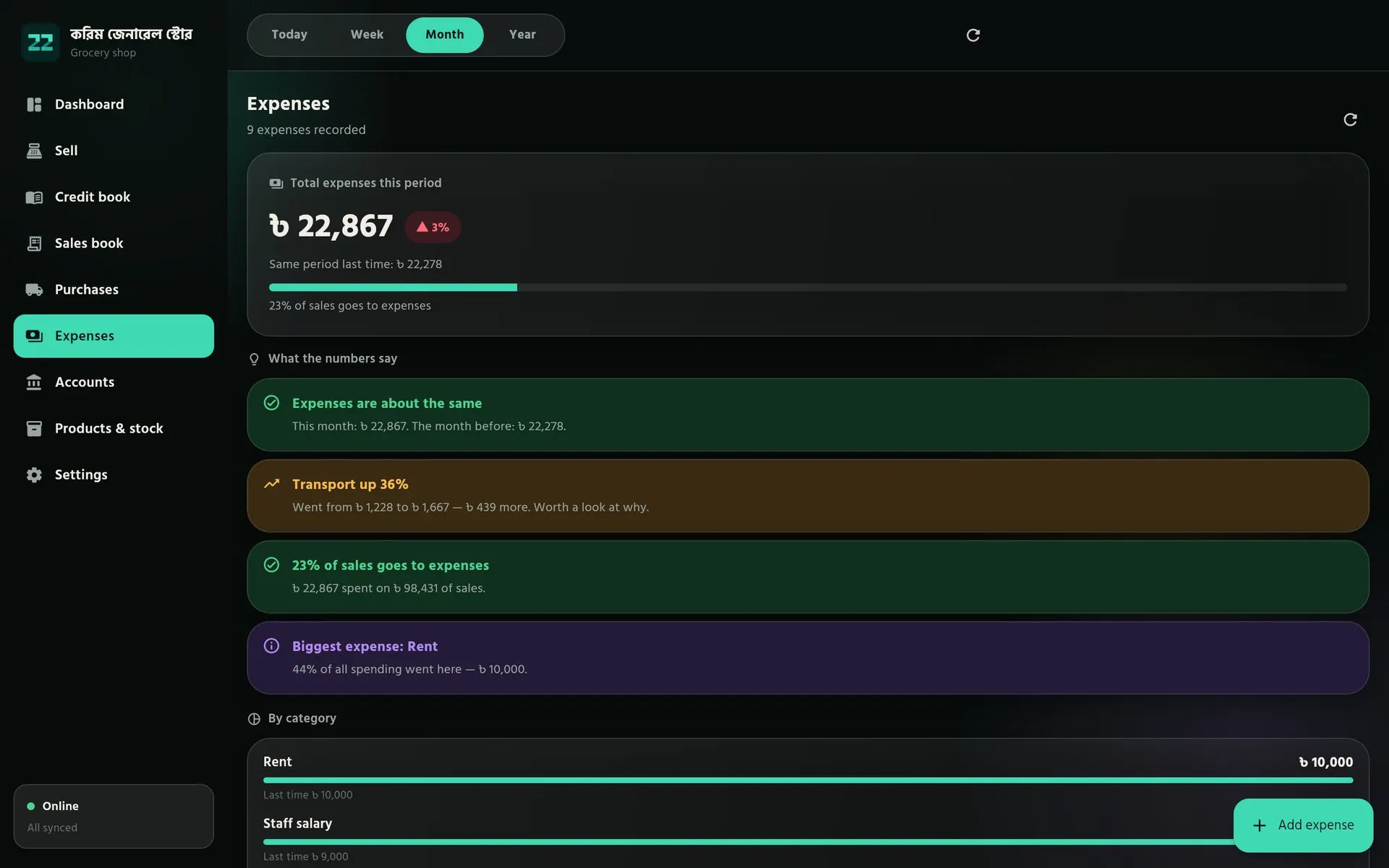
Expenses7 of 9
Expenses that explain themselves
Spending by category, compared with the period before, with plain notes when something changes — transport up 36%, rent taking 44% of spending, or a bill that was not recorded this time.
How to use it
- Tap “Add expense”, pick a category and enter the amount.
- Change the period at the top to compare months.
- Read the notes — they point at costs that grew or were missed.
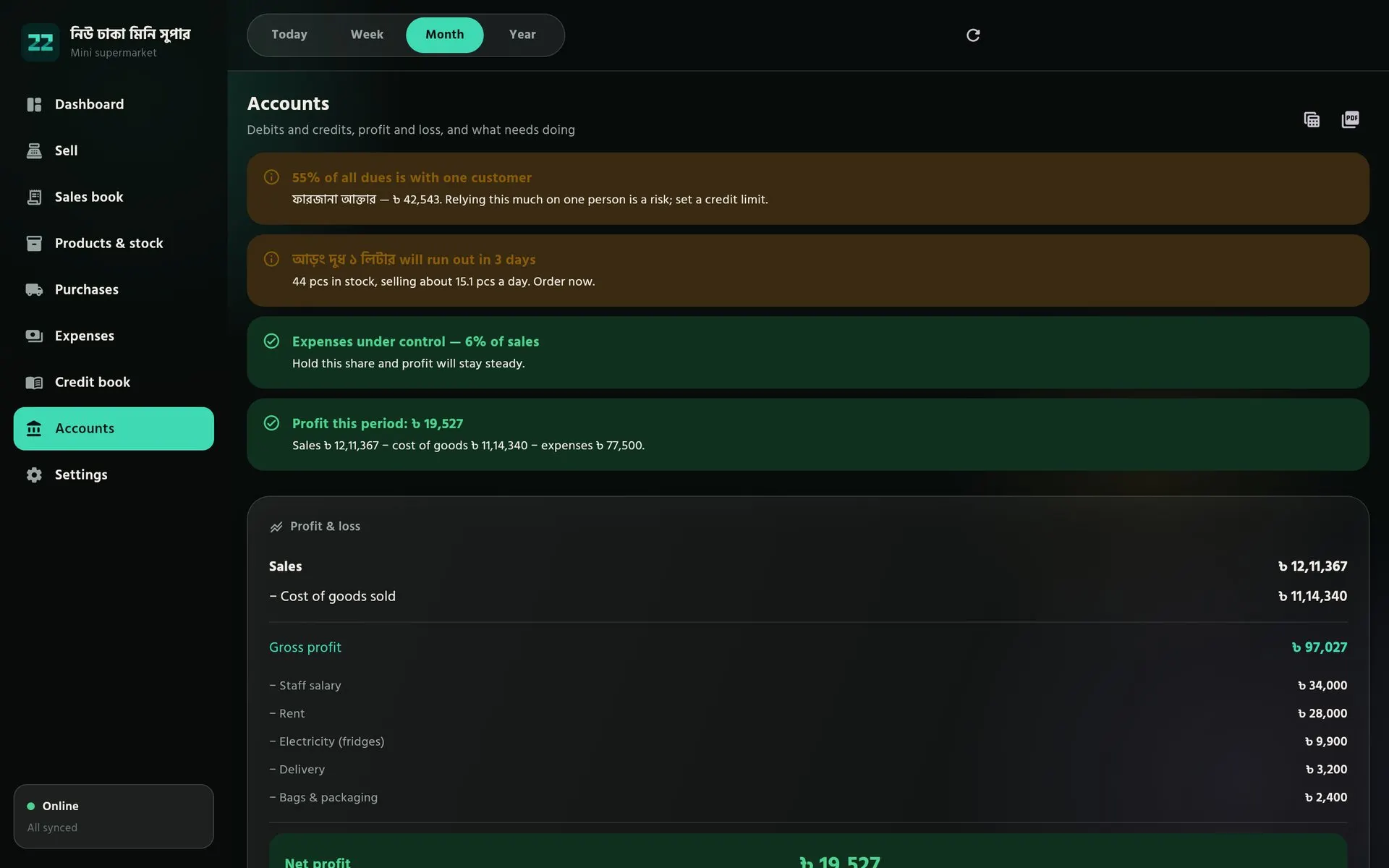
Accounts8 of 9
Accounts with advice
Profit and loss, balance sheet, cash flow, ledger and journal, built from everyday work. Advice comes first: a product about to run out, or too much credit resting on one customer.
How to use it
- Pick the period at the top.
- Read the advice cards, then the profit and loss below them.
- Print the books, or save them as PDF or Excel for your accountant or bank.
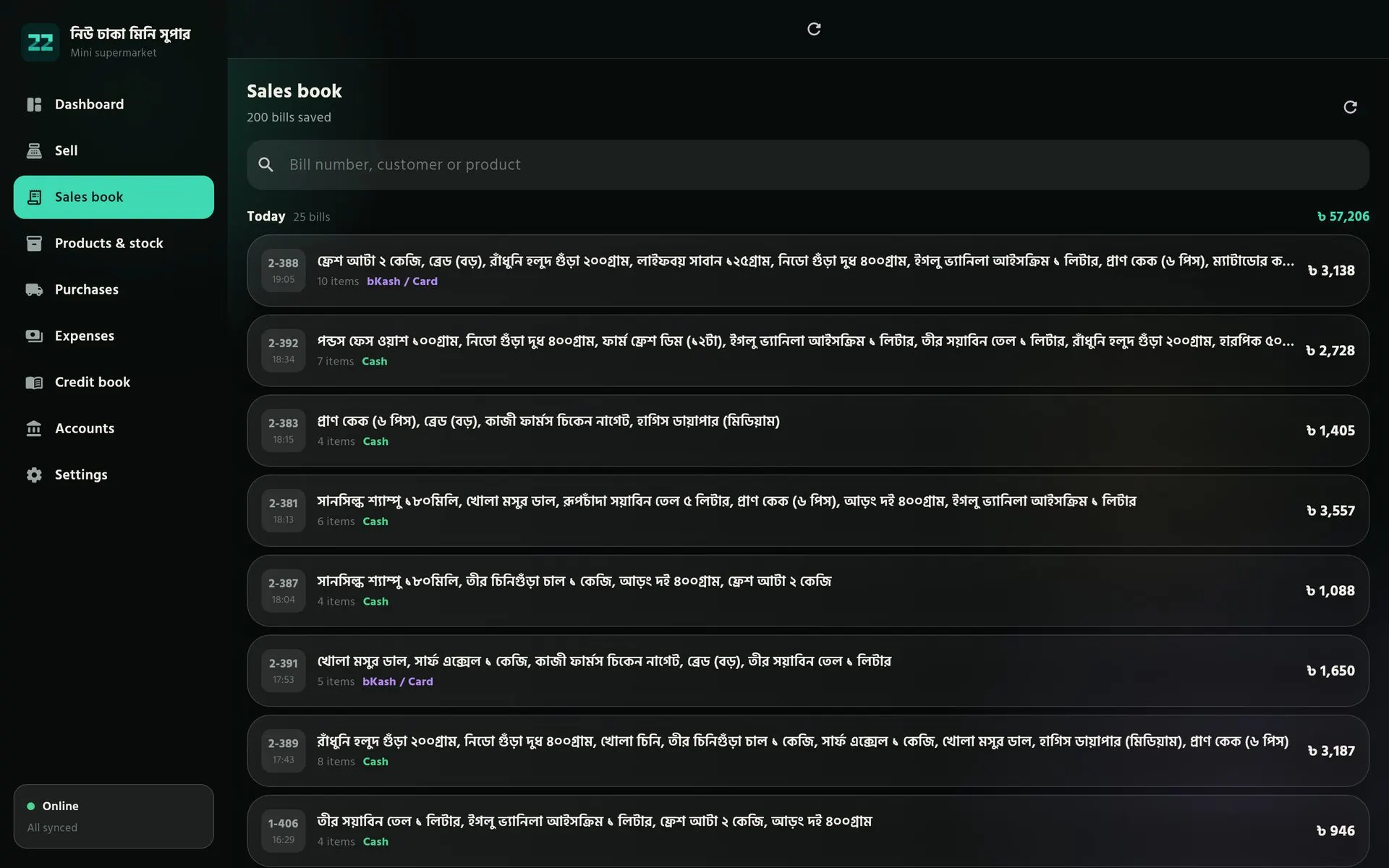
Sales book9 of 9
Every bill on record
All bills by day with their items, payment method and total. Nothing disappears: a cancelled bill stays in the book, crossed out, so the history is always complete.
How to use it
- Search by bill number, customer or product.
- Open a bill to print it again or take a return.
- Cancel a mistaken bill — stock, cash and dues reverse on their own.
The same shop, in your pocket
The owner’s phone and the counter PC show the same books. Each device keeps working offline and syncs when it can.
- Android
- Windows
- macOS
- Linux
- Web
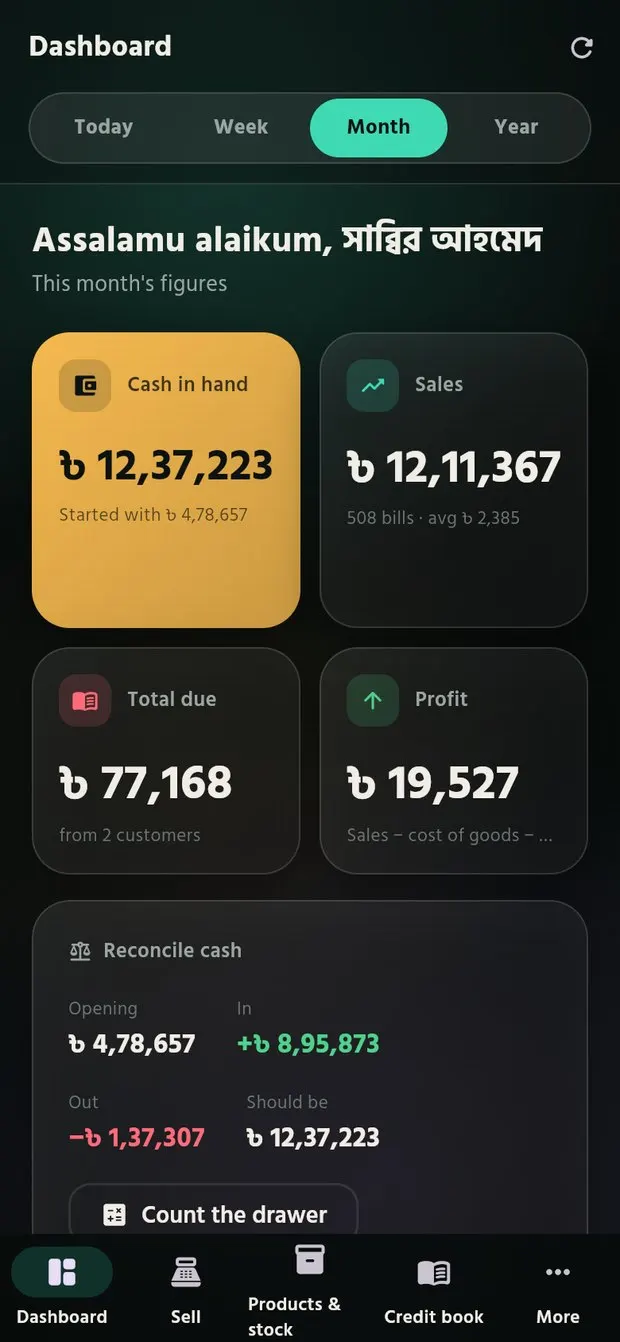
Dashboard
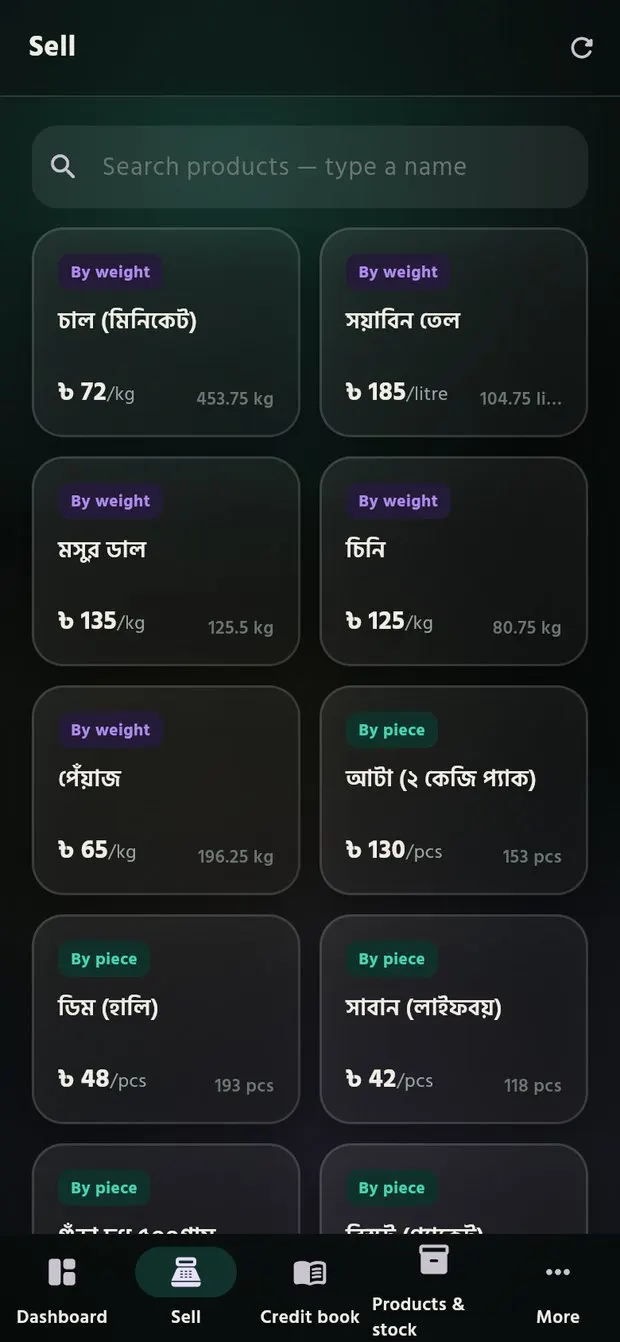
Sell
Credit book
Everything a shop counts on
Fast billing
A calculator-style pad, discounts per item or per bill, hold a bill for the next customer, returns and cancellations that reverse correctly.
Barcodes & weight
Scan with a scanner or the phone camera, add an unknown barcode without leaving the bill, sell loose goods by kilo or by amount, and print scale labels.
Credit book
Every credit sale and repayment on record, a limit for each customer, and reminders by SMS or WhatsApp.
Cash box & shifts
Cash in hand rebuilt from every entry, drawer counts where a gap is recorded rather than hidden, and shifts that close per cashier.
Stock & expiry
Live stock, low-stock warnings, shelf counts, batches with expiry dates that sell the oldest first, and write-offs with a reason.
Suppliers & purchases
Deliveries that update stock, what you owe each supplier, returns to suppliers and a reorder list grouped by who supplies it.
Profit & accounts
Real profit after cost of goods and expenses, a cash book, journal and trial balance, and advice in plain words about what needs doing.
Expenses
Rent, electricity, salaries and your own categories, compared with last period so a rising cost is noticed the same month.
Invoices & printing
A4 and A5 memos, 80 mm and 58 mm receipts, a VAT invoice and delivery challan with your logo, printed over Wi-Fi, Bluetooth or USB.
Staff & permissions
A PIN for each person and a role for each job. Cashiers never see purchase costs, and the server checks every entry, even ones made offline.
Offline, on every device
Counter, phone and web share one set of books. Each device works without internet and syncs without ever double-counting a sale.
Import & export
Bring products in from Excel or CSV, and export the books and stock to Excel or PDF for your accountant or a bank loan.
Built for your kind of business
One engine that changes shape for each shop. Choose your business type when you first open PMS: the menus, the sell screen and the product form adapt to it.
Ready now
Grocery shop
Loose rice, oil and lentils sold by weight or by amount, a credit book at the heart of it, and quick search for regulars.
- Weight and piece in one bill
- Credit limits
- Shelf codes
Mini super shop
Barcode-first counters, departments and shelves, MRP checks, expiry batches, staff shifts and shrinkage by reason.
- Barcode & camera scan
- MRP and expiry
- Several counters
Coming next
PMS is designed for twenty kinds of business. These are planned, starting with pharmacies. Tell us yours and it moves up the list.
Health
- Pharmacy
- Diagnostic centre
Retail
- Cosmetics & general store
- Stationery & photocopy
Food
- Restaurant & tea stall
- Bakery & sweet shop
Fashion & personal
- Cloth shop & tailor
- Shoes & bags
- Salon & beauty parlour
- Laundry
Precious goods
- Jewellery shop
Electronics & services
- Electronics & mobile
- Computer & IT
- Mobile banking & courier point
Trade & wholesale
- Hardware & sanitary
- Furniture
- Auto parts & garage
- Wholesale & commission trade
Agriculture
- Fertilizer & seed
- Rice, grain & animal feed
Something else?
Tell us your business type and we’ll look at adding it.
Tell us
Why it’s free
Free isn’t a trial. Here’s how it works.
Trakito donates the servers
Our sister company Trakito gives PMS its server space, so there is no hosting bill to pass on to you.
Students built it
PMS was built by students — real software made to help real shops, not to make money.
No profit needed
Nobody needs to earn from PMS. 22Softwares earns from client projects, so PMS stays free without selling anyone’s data.
- No subscription and no trial period
- Updates are free too
- Your data is never sold
- Every feature is included
Works offline. Your numbers stay right.
Every sale is saved on your device first. When the connection comes back, PMS syncs in the background. Balances are rebuilt from each recorded sale and payment, so a sync problem can’t change your numbers.
Questions shop owners ask
Straight answers about running a shop with PMS — from the first day to a growing business.
Getting started
How can this software help my business?
PMS keeps your cash, stock, customers and accounts in one place, and updates them with every sale. At any moment you know how much money is in the box, what is on the shelf, who owes you and whether you are making a profit.
- Cash boxevery sale, purchase, expense and payment moves your cash in hand automatically. Count the drawer daily, weekly or monthly and PMS shows whether it matches.
- Fast sellingbill by barcode scan, name search or weight, with pieces and kilos on the same bill. Take cash, bKash or credit, give discounts, take returns and print or share the receipt.
- Stockcost and sale prices, low-stock and expiry alerts, stock counts, purchases from suppliers and returns to them. A reorder list is grouped by supplier.
- Credit bookwho owes what, credit limits, payments received and due reminders by WhatsApp or SMS.
- Expensesrent, salaries, bills and everything else by category, so your profit is real profit.
- Accountsprofit and loss, balance sheet, cash flow, trial balance and journal, built from your daily work. Print them or save them as PDF or Excel.
- Staffseparate PINs and permissions, shifts with drawer counts, and every bill recorded under the person who made it.
It all works offline on Android phones, computers and in the browser, and syncs when you are online.
How do I start with the software?
The best way to learn PMS is to walk through the demo shop first. It is a complete shop with products, customers, sales and expenses already in it, so you can see how every action flows into the statistics and the accounts before you enter a single real number.
- Installdownload PMS for your device, or open it in the browser.
- Open the demoon the sign-in screen, choose “Try the demo shop”.
- Make a few billson Sell, scan or search products, change quantities, and take one payment in cash, one in bKash and one on credit.
- Read the Dashboardsee how cash in hand, sales, total due and profit changed after each bill, and switch between today, week, month and year.
- Follow the moneyopen Credit book, Purchases and Expenses to see where each amount is recorded.
- Open Accountsthe same work appears as profit and loss, a balance sheet, cash flow and a journal where every transaction has two sides.
- Open your own shopreturn to the sign-in screen and choose “Open a new shop”. Your shop starts empty and separate from the demo.
How do I use this software, step by step?
Once your shop is open, set it up in this order. Your figures are then correct from the very first sale.
- Complete setupchoose your business type, then answer a few short questions: billing counters, barcode scanner, printer and paper size, selling by weight, who makes bills, how often you count cash, VAT and credit. You can change every answer later in Settings.
- Add your opening cashenter the money in the cash box during setup, or later on the Dashboard with “Put cash in”.
- Add products to stockuse “New product” for name, sale price, cost, stock, unit and barcode, or import your whole list from an Excel or CSV file. Record new stock from suppliers in Purchases, so cost and stock stay right.
- Add old customers and expenses, if neededadd regular customers to the Credit book with their mobile number and a credit limit, and record this month’s rent, salaries and bills in Expenses.
- Start sellingon Sell, scan or search, set the quantity or weight, add a discount if needed, and take cash, bKash or credit. Print the receipt or share it as a PDF.
- Check the Dashboard for cashcash in hand, sales, dues and profit for today, the week, month or year. Use “Reconcile cash” whenever you count the drawer.
- Open Accounts for the detailsprofit and loss, balance sheet, cash flow, ledger and journal, ready to print or save as PDF or Excel.
Can I bring in my product list from Excel?
Yes. In Products & stock, choose “Import products from a file” and pick an Excel (.xlsx) or CSV file. Column names can be in Bangla or English. Only a name and a price are required; cost, stock, unit, barcode, code, MRP, shelf and section are taken when present. Products already in the shop are left as they are.
What equipment do I need?
Only a phone or a computer. A budget Android phone with 2–3 GB of RAM is enough. A barcode scanner, a 58 mm or 80 mm receipt printer (Bluetooth or network) and a label-printing weighing scale are optional — the phone camera can also scan barcodes.
Which businesses can use PMS today?
Grocery shops and mini super shops are fully ready, including selling by weight, batches with expiry dates and supplier purchases. More business types are on the way — tell us yours and we will look at adding it.
Staff and growth
How can I add more sellers?
Staff accounts are built into PMS. Each seller gets their own PIN, and you decide exactly what they can do.
- Turn on staff loginif you chose “Just me” during setup, switch on “Staff login” in Settings, under “Login & security”.
- Add the personopen “Staff & permissions” from the menu and tap “Add staff”.
- Enter their detailsa name, an optional mobile number and a 4–6 digit PIN. Tell them the PIN.
- Choose a roleManager can do everything; Cashier sells and writes credit. Or pick permissions one by one: credit, discounts, cancelling bills and returns, products and prices, purchases, expenses, cash box, profit and accounts, and settings.
- Set a discount limiton the same screen, “Staff discount limit” caps how much staff can take off one bill. Your own bills have no limit.
- Use shifts for several counterswith shifts on, each seller counts the drawer at the start and end, and you see whose shift was short or over.
Sellers sign in by picking their name and entering their PIN, and every bill is recorded under their name. Selling for cash or bKash is always allowed. Adding staff needs an internet connection once, because PINs are kept safely on the server, not on the phone.
How can I keep a proper routine to grow my business with the app?
Growth comes from knowing your numbers and acting on them regularly. This rhythm works for most shops:
- Every salebill everything through PMS, including credit sales, so no item or taka goes unrecorded.
- Every purchase and expenserecord it the same day with the supplier or category. Then cost, stock and profit stay true.
- Every eveningcount the cash box and reconcile it on the Dashboard. A difference found today is easy to explain; one found next month is not.
- Every weekreview the Credit book, send reminders to customers with older dues and set limits for slow payers. Check the “Running low” and expiry lists and send the reorder list to suppliers.
- Every monthread profit and loss: sales trend, margin and where the expenses went. Compare with last month, and do a stock count to catch damage, theft or loss early.
- As you growadd staff with only the permissions they need, use shifts for several counters, and save the books as PDF or Excel for your accountant, bank or investors.
Can I use PMS on more than one device?
Yes. Your mobile number is your login, and the same account works on phones, computers and the browser. Sales from every device sync into the same books, so the Dashboard and Accounts show the whole shop.
What if I make a mistake on a bill?
Cancel the bill, or take a return for the items the customer brought back. PMS puts the goods back in stock and corrects the cash box and the customer’s due. Nothing is erased: the cancelled bill stays in the sales book, crossed out, so the history is always complete. Staff need the “Cancel bills and take returns” permission.
Can I get more customization?
Yes, in two ways.
- Freereport bugs and suggest improvements in our forum. Fixes and features that help every shop are added to PMS for everyone, free of charge.
- Paidfor features built only for your business, such as SMS and email notifications, webhooks, connecting PMS to your website, a live online shop and online orders and payments, contact us through the contact form or by email. We will scope it with you and give you a clear quote.
Price, data and support
Is PMS really free?
Yes. Every feature is free for every business, with no subscription or trial period. Updates are free too. You only pay if you ask us to build something just for you.
Do I need internet?
Not for daily work. Selling, stock, credit and expenses all work offline, and every entry is saved on your device first. When you are connected again, PMS syncs in the background. A connection is needed once for a few things, such as adding staff, changing settings and loading the full accounts.
What happens to my data if I lose my phone?
Everything that has synced is safe on the server. Install PMS on a new device, sign in with your mobile number and password, and your shop comes back. Entries made offline sync the next time the device connects, so let it go online regularly.
Is my shop’s data sold or shared?
Never. Your data belongs to you. It is not sold, not shared with advertisers and not used for anything except running PMS for you.
Which languages does PMS support?
Bangla and English, and you can switch at any time.
Where can I get help?
Ask in the PMS section of our forum, where other shop owners and our team answer. For anything private, use the contact form or email us. We answer in Bangla, English and Greek.
PMS runs your whole shop. Free, forever.
Free on every platform. We’ve highlighted the download for the device you’re using now.